
The events list #
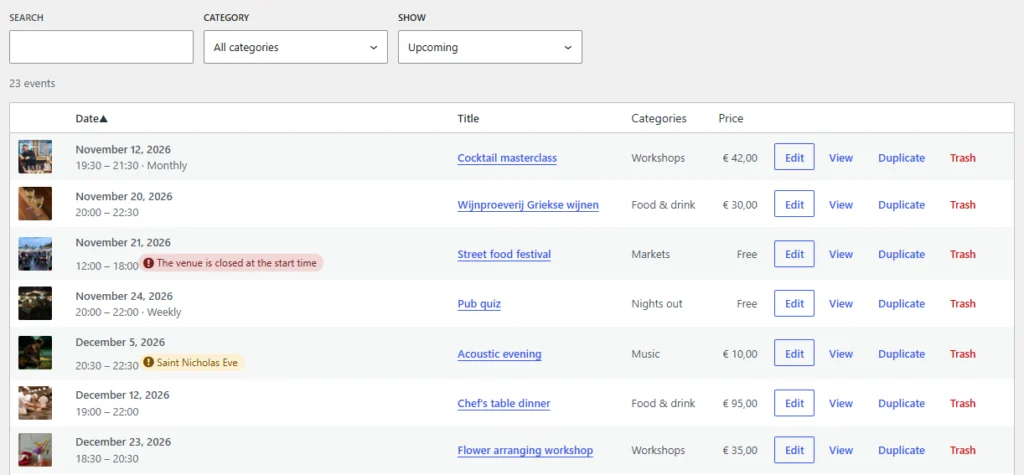
It won’t be a big surprise that the heart of the Local Events plugin is the ‘Events’ menu option. When you that option, a list shows with all the events, or when it’s time to enter your first event, an empty list.
Let’s take a look at the list first.
Search #
The search function on top of the list searches through the list. Convenient when you are looking for a specific event.
Category #
The category function on top of the list filters the list by category.
Show #
The show function on the top of the list filters the list on ‘status’, possible values are:
- Upcoming (default)
- Past
- Drafts
- All
All three selection functions also work in combination.
Action buttons #
Every row in the table has four action buttons
Edit #
Edit the event
View/Preview #
View the event as the user will see it. Depending on the status of the event (draft or published) it will be either ‘View’ or ‘Preview’.
Duplicate #
Create a duplicate from the event. Can be convenient when a new event shares a lot of information with an older event.
Trash #
The Trash button moves the event to the Trash bucket.
Adding / Editing and event #
The ‘Event’ form is a rather large form, so we’ll look at it section by section.
Editor section #
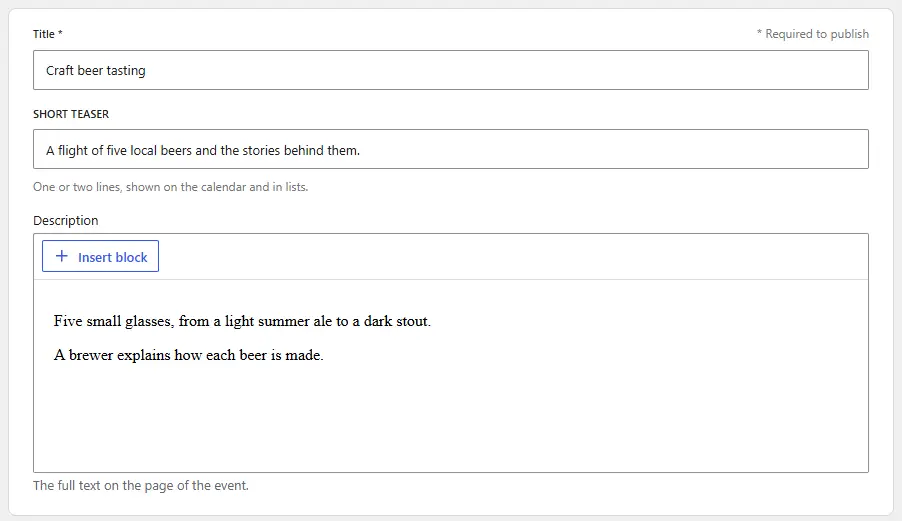
Title #
The title for the event.
Short teaser #
A short text to be shown under the title
Description #
This is a block editor with limited functionality. Instead of only inserting text, it’s possible -by pressing the ‘Insert Block’ button or hitting the slash (/) at the beginning of a line – to insert images, video and image galleries. You’re not limited to text only for the description of your event.
The ‘Published’ section #
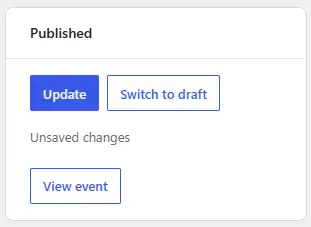
In this section you’ll find the update button, the button to switch the post directly back to draft and the option to open the event in a new tab. When there are unsaved changes, you’ll see the information in the buffer (so the unsaved information), when the information has been saved, you’ll see the page as retrieved from the database.
Image and layout #
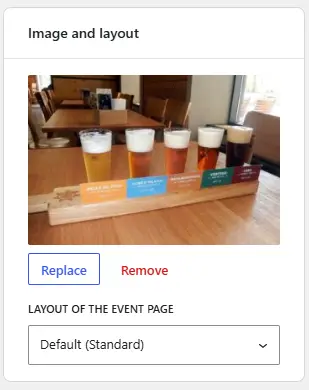
Here you can set the Featured Image and select the layout you want to use for the event.
There are four built-in layouts
- Standard
- Picture on top
- Card beside the text
- Compact
In the Settings you can select the default setting for the layout, but here you can override this default.
When #
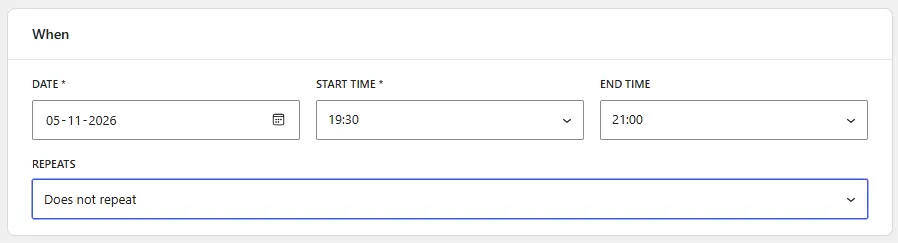
In this section you’ll set the date and times for the event. For repetitive events you’ll also add the frequency of repetition.
Understanding repetitive events #
In the context of this plugin a ‘repetition’ is a similar event being repeated. So for example a pop-quiz held each Thursday is a repetitive event, but a course ‘Dutch for beginners’, consisting of 10 lessons is not. The difference is that with a course, the same group attendants will be there. It’s not possible -or at least not meant to be this way- that somebody only is present at for example the 5th lesson. Course dates (or whatever dates for non-repetitive events) are ment to be part of the text of the event description itself.
Repeats #
Keeping that in mind, the ‘Repeats’ can have the following values
- Does not repeat (default)
- Daily – Repeats at the same time each day
- Weekly – Repeats at the same week-day at the same time
- Monthly, on the same date – Repeats at the same day of the month each month, at the same time. For example each 2nd day of the month.
- Monthly, on the same day of week – An event planned for the second Monday in October will repeat at the second Monday of each and every month.
Depending on the selection made above, additional fields show up:
Repeats daily #
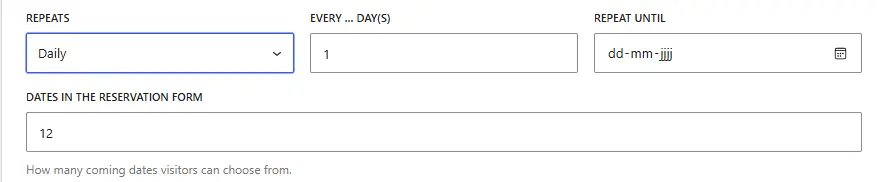
- Every… day(s) – The number of days for repetition. When I would enter ‘2’ it would repeat every second day, if I would enter 7, it would actually a weekly repetition.
- Repeat until – The end date of the repetition. No new dates will be reserved for a recurring event.
- Dates in the reservation form – From how many dates people can chose. For example, it might well be, that you have your pop-quiz every week, but people only can make a reservation for the first two planned. In that case the ‘dates in the reservation form’ would be 2. People still can see all planned dates, but only make a reservation for the next 2.
Repeats weekly #
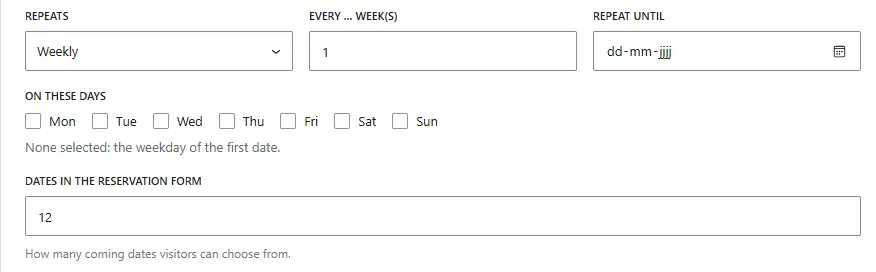
- Every … weeks – Number of weeks for repetition, When I would enter ‘2’ it would repeat every second week.
- Repeat until – The end date of the repetition. No new dates will be reserved for a recurring event.
- On these days – The days within the week the event occurs. For example, if you’ll have a ‘happy hour’ each Monday and Tuesday, every Monday and Tuesday, week after week, there will be a ‘happy hour’ event.
When you don’t pick (a) day(s), the day of the first date will be the offset. - Dates in the reservation form – From how many dates people can chose. For example, it might well be, that you have your pop-quiz every week, but people only can make a reservation for the first two planned. In that case the ‘dates in the reservation form’ would be 2. People still can see all planned dates, but only make a reservation for the next 2.
Repeats monthly, on the same date #
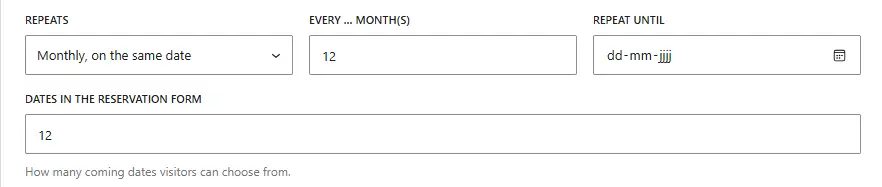
- Every … months – Number of months for repetition, When I would enter ‘2’ it would repeat every second month.
- Repeat until – The end date of the repetition. No new dates will be reserved for a recurring event.
- Dates in the reservation form – From how many dates people can chose. For example, it might well be, that you have your pop-quiz every week, but people only can make a reservation for the first two planned. In that case the ‘dates in the reservation form’ would be 2. People still can see all planned dates, but only make a reservation for the next 2.
Tip: There is no ‘yearly’ repetition, but a year… is 12 months. If for example you want to schedule a New Year Eve’s event for each year, Plan it on the 31th of December of the current year, and repeat it ‘Monthly, every 12 months’.
Repeats monthly, on the same day of the week #
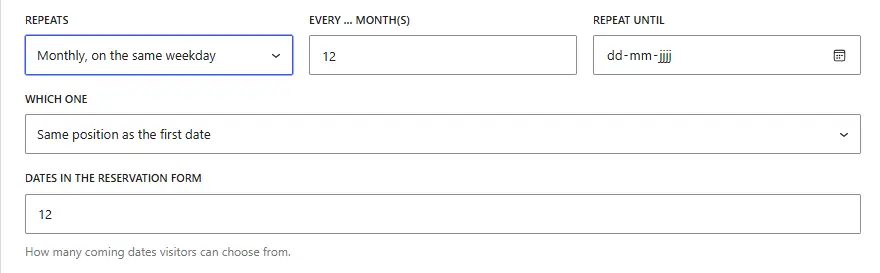
- Every … months – Number of months for repetition, When I would enter ‘2’ it would repeat every second month.
- Repeat until – The end date of the repetition. No new dates will be reserved for a recurring event.
- Which one – Possible values are ‘First’, ‘Second’, ‘Third’, ‘Fourth’ and ‘Last’. When the first date for example is the a Tuesday of a month, and you chose it has to be the ‘First’, the date will be set from that second Tuesday. So it would not be any Tuesday in that month (because it’s already past the first Tuesday) the real date would be the first Tuesday of the next month.
- Dates in the reservation form – From how many dates people can chose. For example, it might well be, that you have your pop-quiz every week, but people only can make a reservation for the first two planned. In that case the ‘dates in the reservation form’ would be 2. People still can see all planned dates, but only make a reservation for the next 2.
Coming Dates #
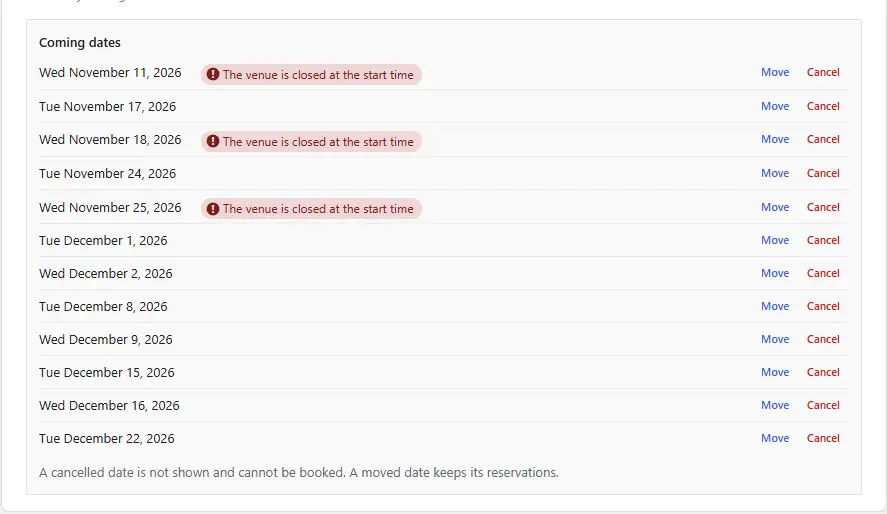
Using the repetitive dates mentioned above, you can check the dates also in the list directly beneath the date settings. Interactively the list with the dates selected, until the maximum set in ‘Dates in the reservation form’ will be shown. When one date in the list does not suit you, you can either cancel it (the date disappears from the list) or ‘move’ it.
Moving a date in a recurring event #
Sometimes in a set of planned event dates, one date doesn’t really suit you. Maybe because the eventspace is already booked, or because it does not fit in your schedule. In that case you can move an event. Simply click on ‘Move’ behind the event-date and an edit box appears to set a new date.
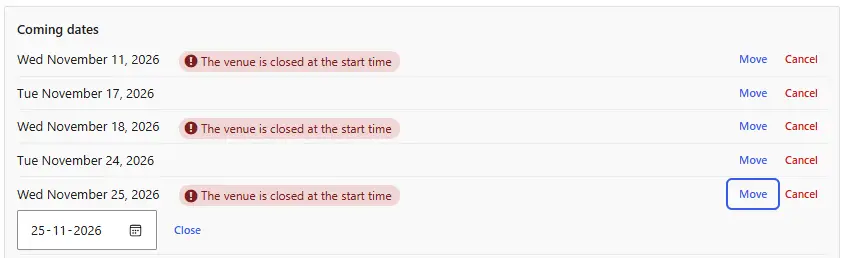
Let’s say we want to move it to the 27th. So we fill in the right date and click enter.
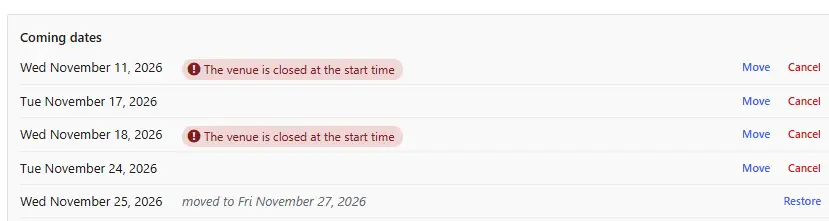
Now the date is set to November 27. As you see, the ‘Move’ and ‘Cancel’ links disappeared and are replaced by ‘Restore’.
Price section #
The very first version of this plugin was built for a webdesigner. For her customer, the owner of an English pub in the Netherlands, she needed a ‘simple events plugin’ with only two goals: Manage registration for the weekly pub-quiz and manage registration for the monthly Open Podium. For both events people should be able to register, there was a maximum number of registrations and some list should be created of the people registrering for the event.
So payment was a non-issue.
Right now, the plugin has grown. But still most pubs like to handle the ‘payment at the door’. So the basic version of this plugin does not support online payment. I like to keep my plugins lean and clean. Why a payment overhead, when a large part of the target audience won’t use it anyway?
However, a training giving a course loves it when people pay in advance. At the start of a course you do not want to have to deal with all the details of financial administration. Therefore parallel with WXP Local Events also an add-on has been developed. WXP Local Events for WooCommerce is an add-on integrating WXP Local Events with WooCommerce. This add on will be discussed in a separate document in these docs.
Free events #
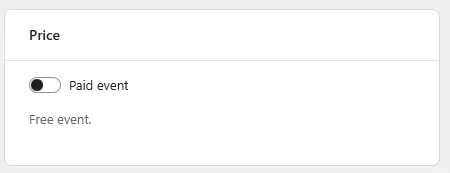
By default an event is free. You’ll see in the ‘Price’ section only the toggle to make it a paid event.
Paid event #
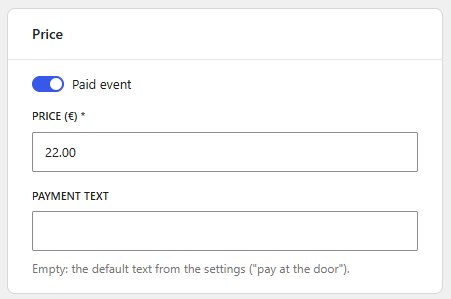
With a paid event, you have to enter the price and the text to be shown to instruct how to pay. This is something that can be set in Settings. Whatever you write here overrides the text in settings.
Categories #
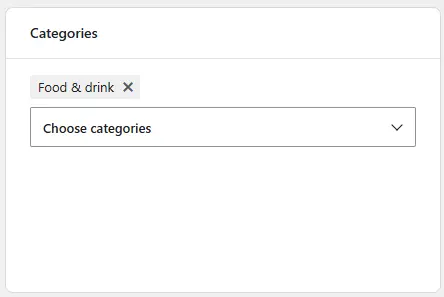
You can assign one or more categories to the event. Please note that only one event will be used to give the color accent to the event page.
Reservations #
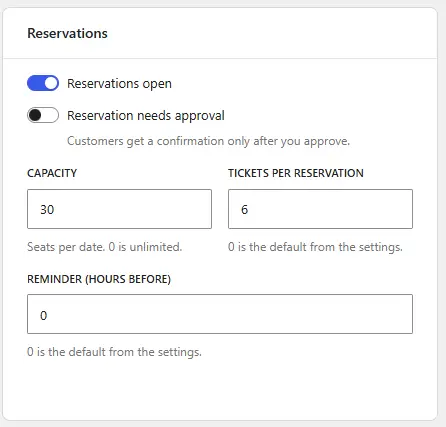
Reservations open #
When this toggle is active people can make reservations. When this toggle is not active, on the page of the event is a message that registration isn’t possible.
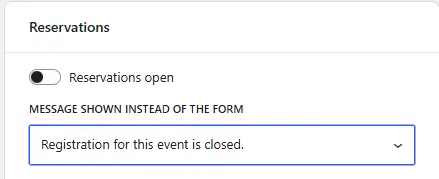
The exact text of the message can be picked from a list or given in by hand.
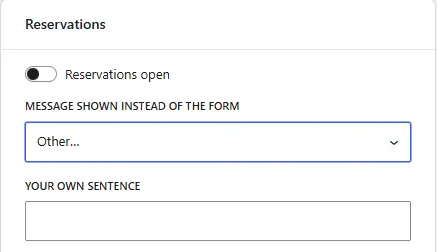
The list of the text has to be configured in Settings.
Reservation needs approval #
This toggle has to be active when each reservation needs manual approval by the staff.
Capacity #
The maximum number of reservations possible.
Tickets per reservation #
The maximum number of tickets to be ordered in a single reservation. Default is set in the Settings
Reminder (hours before) #
When to send a reminder for the event. 0 means ‘no reminder’. Default is set in the Settings
Age Limit #
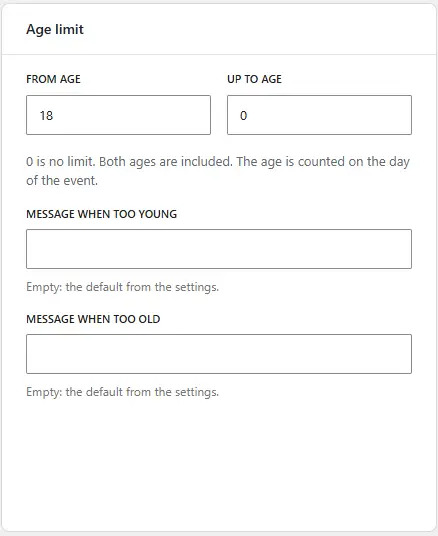
From age #
The minimum age to participate in an event.
Up to age #
The maximum age to participate in an event.
Message when to young #
The message to show when a participant is too young. Default is set in the Settings.
Message when to old #
The message to show when a participant is too old. Default is set in the Settings.


