
Overview #
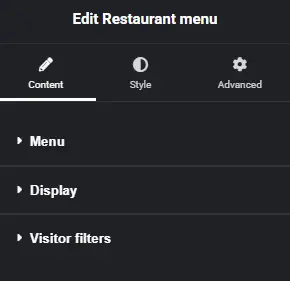
The settings palette of the Restaurant Menu widget consists of three sections at the layout tab.
Menu #
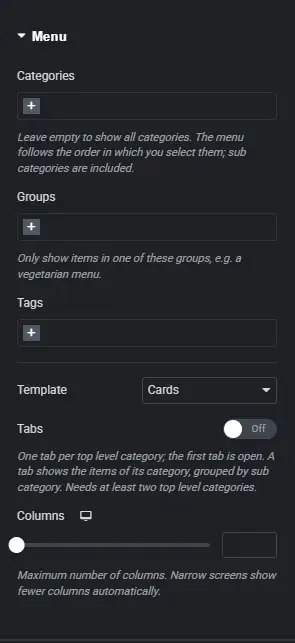
Overview of the menu section
Categories #
You can select some categories, when done so, only the categories selected will show in the menu.
Groups #
You can select some groups, when done so, only the groups selected will show in the menu.
Tags #
You can select some tags, when done so, only the tags selected will show in the menu.
Template #
The template to be used to show the menu. Built in are Cards, Compact, Default, Elegant and Side-by-side. It is possible that more templates will show if the webdesigner created additional templates.
Tabs #
Toggle to activate or deactivate the menu tabs
Columns #
The number of columns to show on a desktop. On narrow screens the number of columns will adapt itself automatically, but you still can set a different value for other device widths too. Columns are not supported by every template and some templates have a maximum number of columns.
Display #
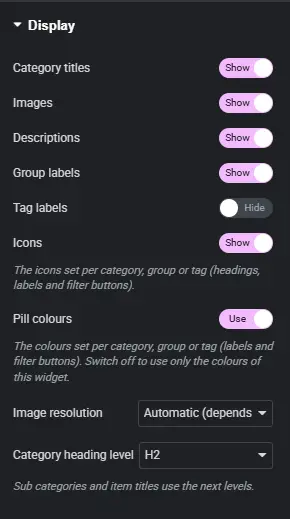
Overview of the Display section
Category titles #
Do you want to show the category titles in the menu? Defaults to ‘Show’.
Images #
Do you want images to show in the menu? Defaults to ‘Show’.
Descriptions #
Do you want descriptions to show in the menu? Defaults to ‘Show’.
Group labels #
Do you want group labels to show in the menu? Defaults to ‘Show’. Side note: When the value is ‘show’, it shows the labels with the menu item, it does not show the filter buttons for group labels. That’s another setting.
Tag labels #
Do you want tag labels to show in the menu? Defaults to ‘Hide’. Side note: When the value is ‘show’, it shows the labels with the menu item, it does not show the filter buttons for tag labels. That’s another setting.
Icons #
Do you want icons for category, group or tag to show? Defaults to ‘Show’.
Pill colors #
Do you want to use the pill colors as set individually with category, group or tag, or do you only want to use general settings. Defaults to ‘User’.
Image resolution #
Standard WordPress creates for each uploaded image a number of copies in different resolutions. Here you can set a specific resolution for the images in the menu, or set it automatically (recommended)
Category heading level #
The level of the category heading (H2, H3, H4, H5, H6). The next levels automatically use the next step, so if you would set ‘H2’ as category heading, the level below would be H3, if you select H3, it will be H4 a level below etc.
Default is H2
Visitor Filters #
Hiding and showing filters and captions #
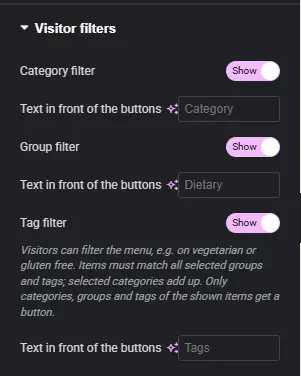
This section is self-explanatory. Here you can show/hide the filter buttons to filter the menu.


