
The settings page consists of a few meta boxes. We’ll look at them one by one
General settings #
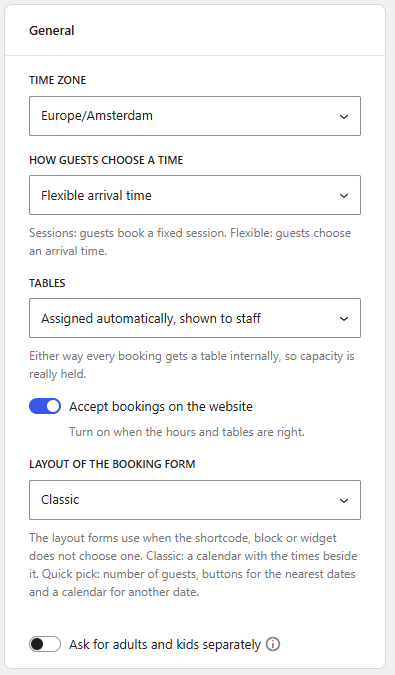
Time zone #
The time zone where the venue is situated
How guests choose a time #
There are two possible values:
Flexible arrival time : The guest can arrive at the time they want. This is the most common
Fixed sessions : The guest has to reserve to specific time slots. This is common with many ‘As much as you can eat’ restaurants.
This choice has to be made before the first bookings are made, and can’t be changed as long as there are still open bookings.
Tables #
- Assigned automatically : Tables are assigned by the system, staff can -if there are other tables free- reassign the guests to another table.
- Assigned by staff : Tables are reserved, but not yet directly assigned, the staff has to assign the seats. The guest receives confirmation when the seats are assigned.
Accept bookings on the website #
By default the reservation form won’t be active. First add the tables and the hours and only activate toggle when ready. When bookings are made while times and places are not right yet, it might lead to complications during the bookins.
Layout of the booking form #
The layout to use for the booking form. See also the information on ‘Twig templates’ in the documentation. Currently ‘Classic’ and ‘Quick Pick’ are available, additional templates can be added by your webdesigner.
Ask for adults and kids separately #
This toggle rules if only for the number of guests, or separately for the number of adult, and young guests will be asked. Default off (asks for a single number).
Booking rules #
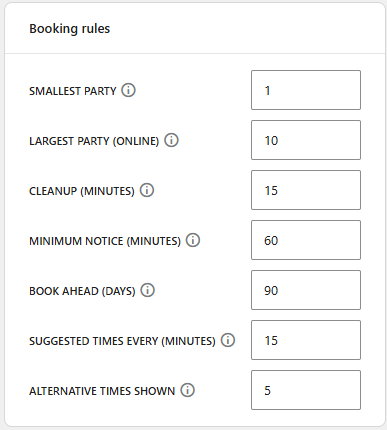
The booking rules are a few important parameters required for the bookings
- Smallest party : The smallest party of guests. Default 1
- Largest party (online): The largest party you accept online bookings for. Defaults on 10. When the party is larger, the online form can’t be used and the guest has to call or come to the restaurant to make the booking.
- Cleanup (minutes): How many minutes does it take to clean up the table. Also take into account that at busy periods extra time might be needed
- Minimum notice: How long before the actual time it’s still possible to book online. Defaults to an hour.
- Book ahead (days): How many days is possible to book ahead. Defaults to 90 days. How far in advance is it possible to book.
- Suggested times every (minutes) : The resolution of the time-slots. Default is 15 minutes, so every time-slot starts at 00, 15, 30 and 45 minutes past the hour. When it would be 30 minutes, the slots start at 00 and 30 past the hour etc.
- Alternative time shown: How many time-slots to show, when the preferred time is not available. Defaults to 5.
Seats kept for walk-ins #
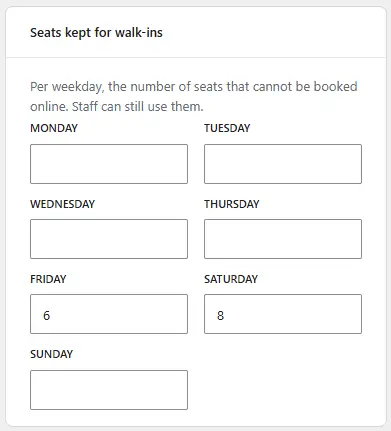
On a per-day base the number of seats to be kept for walk-ins.
Hours from Opening Times #

This plugin integrates with the free plugin WXP Opening Times. When you have WXP Opening Times installed, you can activate the integration by clicking the toggle. When you do, the meta box changes.
Why use WXP Opening Times? #
Often in de hospitality sector, a restaurant or a bar has varying opening times. There are off-season and on-season times, with special days like for example Christmas or New Year the opening times are different and not every day of the week the restaurant is open during the same hours. WXP Opening Times allows you to write a base schedule for your opening times, and define the exceptions on this base schedule. In this way you’ll can prepare your opening times for this year, and many of the next.
WXP Restaurant Reservations is able to use your ‘WXP Opening Times’ schedule to check for the right opening times for a specific date.
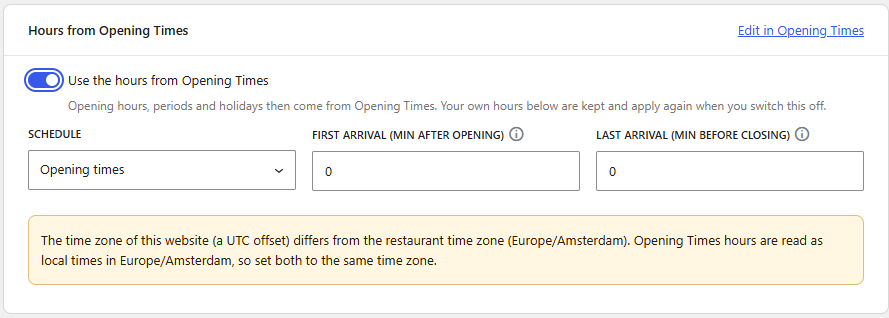
Once WXP Opening Times is activated there are three parameters to fill:
Schedule #
It’s possible to define multiple schedules on WXP Opening Times. There is only one schedule you can use for WXP Restaurant Reservations. Pick the right schedule from the list.
First arrival #
How long after opening the first arrival can enter. In most cases this will be 0. Guest won’t have to wait after the restaurant opens.
Last arrival #
How long before closing time new guests are still accepted?
Service hours #
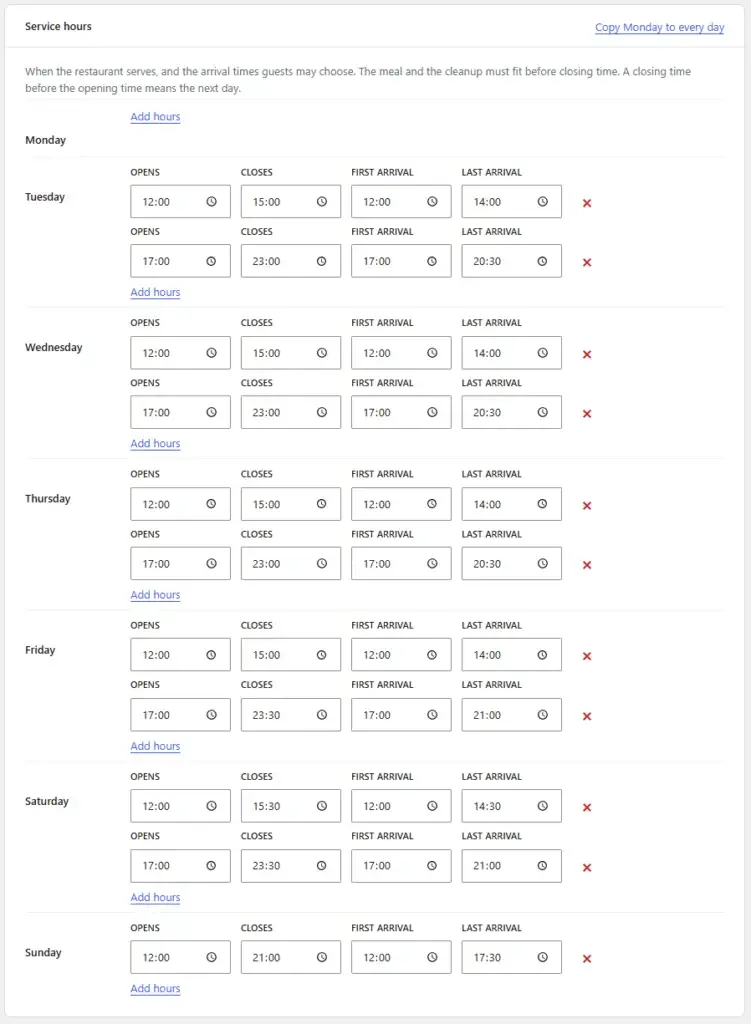
When you do not use the WXP Opening Times plugin, you’ll need to enter the opening times manually.
For each day of the week you’ll enter the opening-time, the closing time, the time for the allowed first arrivals (usually the same as opening time) and the time for the last arrival (normally more than 30 minutes before closing time.
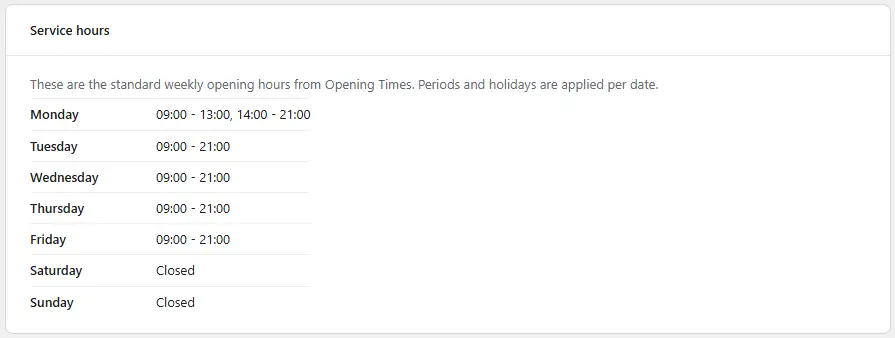
When WXP Opening Times is active the same meta box will show the opening times from the current day week of the WXP Opening Times instead.
Exceptions and closed days #
Most likely you already guessed, when you use WXP Opening Times the settings will again be taken from WXP Opening Times. It will show like the box below:

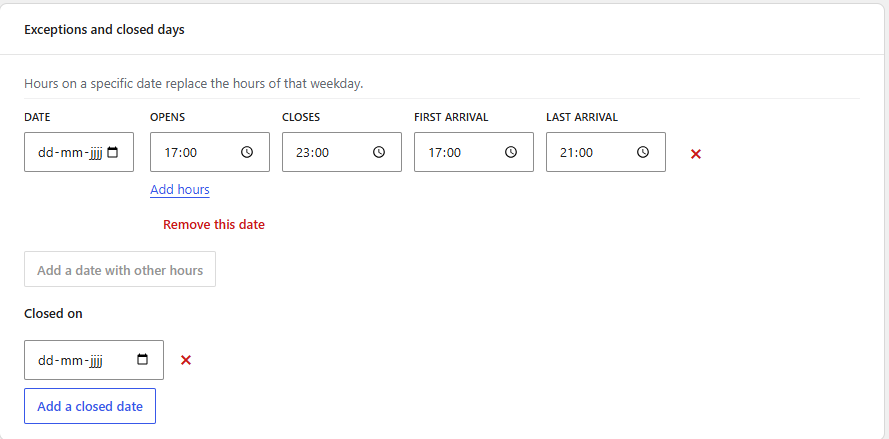
When the plugin is not active, it’s possible to enter days the venue has different opening times, or is closed. It’s only possible to enter specific days. With WXP Opening Times it’s for example also possible to indicate the venue is closed on Easter (Easter is on a different date each year). A schedule once entered most likely does not need to be changed for years.
Dining time #
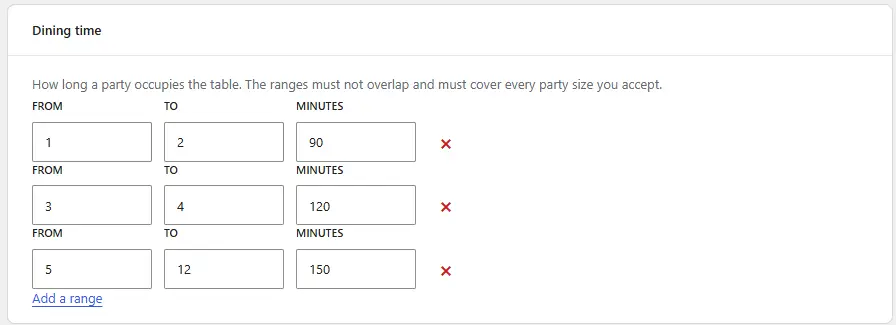
Each restaurant has their own exact numbers, but most venue owners know how long a party as a maximum will stay. Smaller parties on average stay shorter than larger parties and the numbers above are a pretty common example of the dining time.
Adapt the table above to your own situation, and tweak when required.


