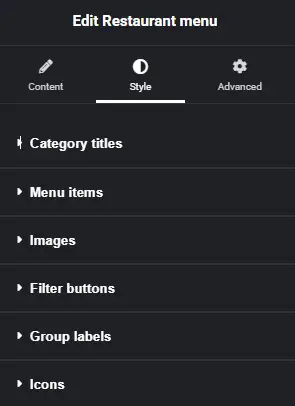
Overview #
The sections of the Restaurant Menu style tab
Category titles #
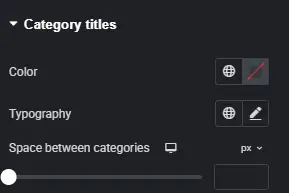
Overview of the ‘Category titles’ section.
Color #
The color for the font. By default it will be the color for secondary text.
Typography #
Settings for the typography
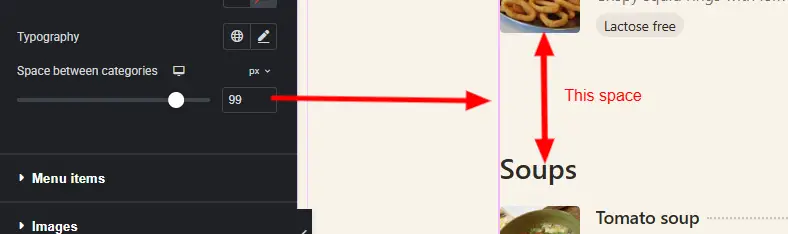
Space between categories #
The vertical space between categories. See the image below:
Menu items #
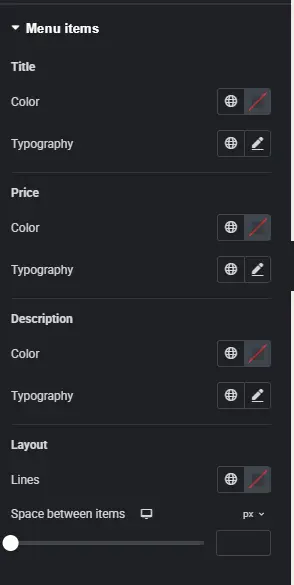
Overview of the ‘Menu Items’ section
Text settings #
For title, price and description, you can set the color and typography.
Layout – Lines #
The best way to show how the lines color affects the menu card, is the image below.
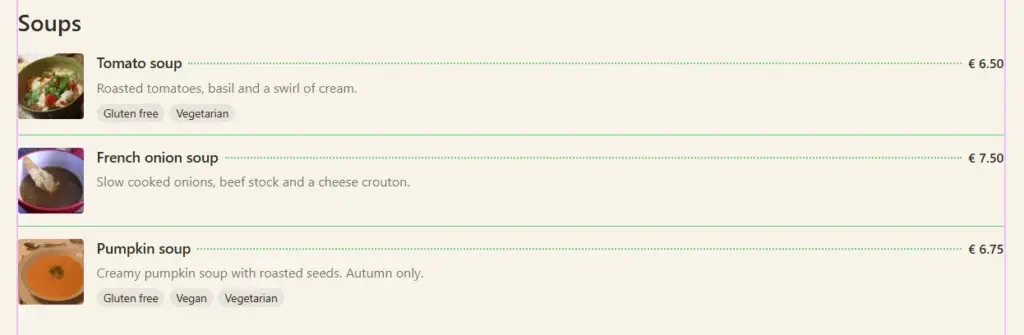
The lines are set to ‘Green’ to make it clear which parts are affected when you set a different line color.
Layout – Space between items #
And again we’re talking about the vertical space. But this time between individual items.
Images #
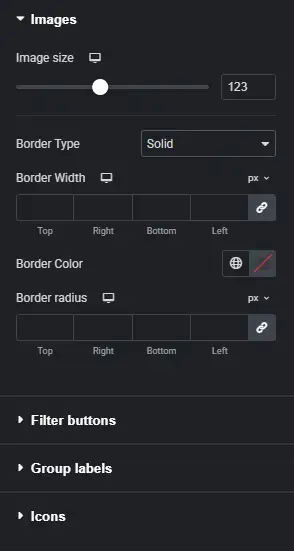
Images has only three style settings, image size, border type and border radius. When you select a value ‘border type’, the options expand with border width, border color and border radius.
Filter buttons #
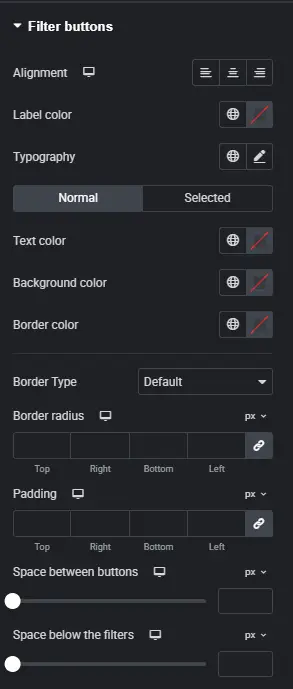
The filter buttons panel sets the parameters for the filter buttons. It’s a rather standard Elementor settings dialogue. Note that the settings are applied to all filter buttons (Category, Group and Tag). Currently there is no way to give each type of filter buttons their own color.
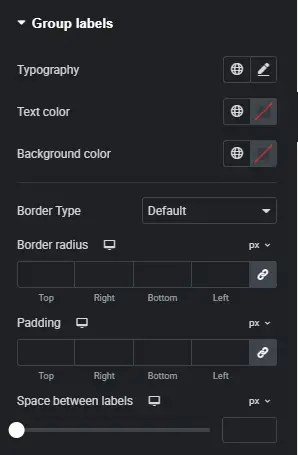
Group labels #
The usual color and typography settings.
Icons #
In the Icons section you can set the size and the distance between de text for the icons.
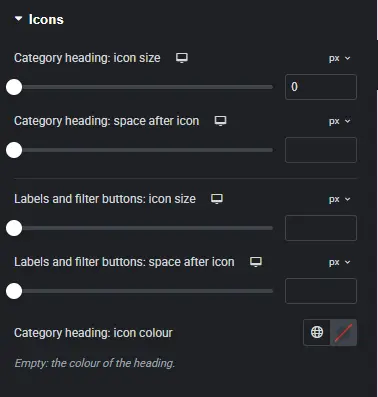
- The first two lines affect the heading on the menu, the title of the category.
- The second two lines affect the category, group and tag labels.
- The last again affects the heading on the categories. By default the icons will have the same color as the text of the category headings. You can override this color by setting a color here.


