
Let’s spice up our work a bit! #
I have to admit, until now the steps of ‘what to do’ to build a menu card has been a bit boring. But now we have some time for your creativity, because we’re going to make ‘tags’. To remind you, ‘tags’ are those little labels you can use to let know that a specific kind of food has some ‘special attributes’, like being ‘new’, ‘chef’s choice’ or ‘seasonal’.
Let’s begin with the tags definitions. #
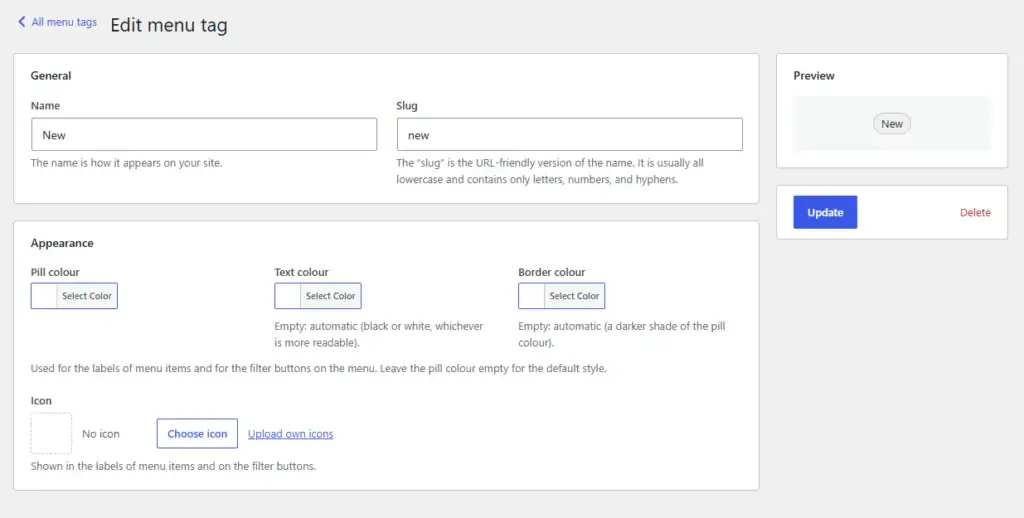
In it’s most basic version is a tag een boring grey ‘pill’. FYI, a ‘pill’ is a shape rounded at both sides, looking like… a pill.
In many ways a ‘tag’ is just another ‘set’… a name, and a so called ‘slug’. Technically we do not need more, but for drawing the attention of the visitor, we want to style it a bit.
So in the page above we have a boring grey ‘tag’ called ‘new’. Let’s spicy it up, and make it read. So in ‘Appearance’, we click on the pill color and -surprise- we can set a color!
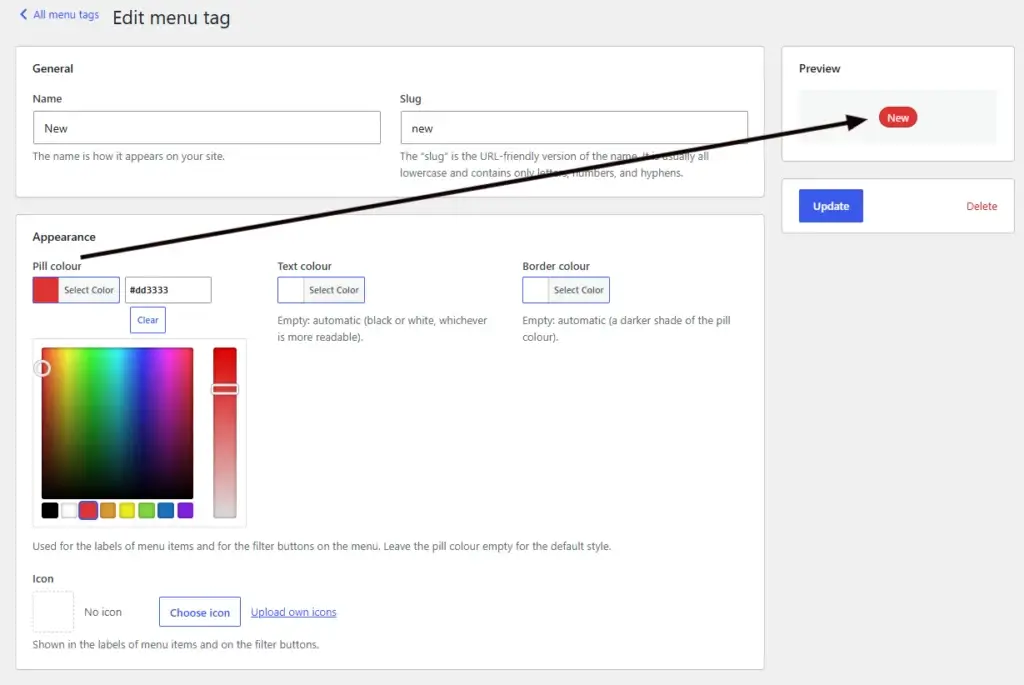
And I set a color for the pill, and as you see, in the preview the color for the pill turns to red. That’s what you expected. What you maybe didn’t expect was that the text turned white. That’s not a bug, it’s a feature. When you change the background color, the foreground will be set with white or black, depending what will give the highest contrast. And white on red gives a higher contrast than black on red.
But of course, if you do not believe the system made the right choice for you, you can always set the text color and the border color manually whatever you like it to be.
Adding an icon #
Adding icons to tags is optional. But when you start to do it, better continue doing so, because it looks ‘weird’ somehow when half of your tags has icons, the other has not.
Remember what I said about the icon libraries.
This is one of the places where we’re going to chose from the icon sets activated.
Let’s click on the ‘choose icon’ button’
Then we see the icon picker. And because we only activated ‘Lucide’ it’s the only option we’ll see here.
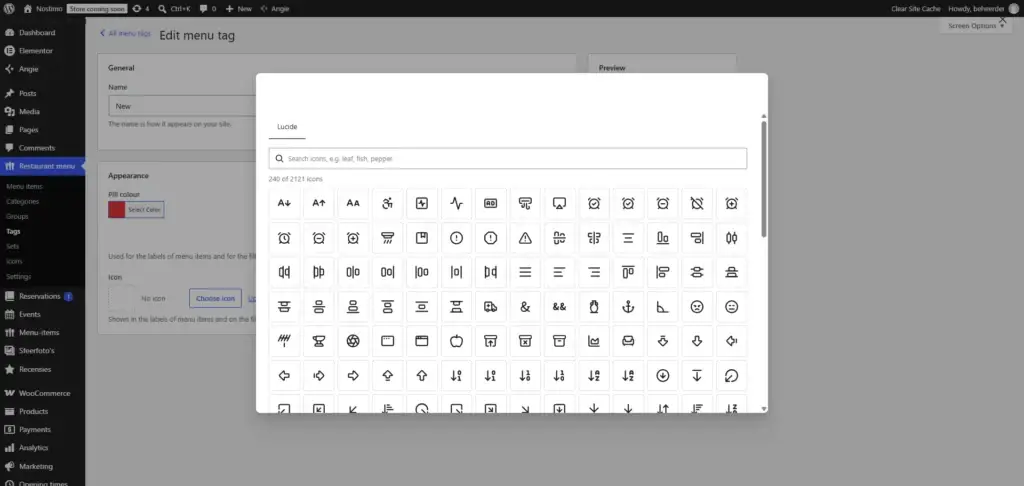
Do you remember that in the settings almost every icon pack had a few thousand icons. That’s a long list to browse through, but lucky as we are there is also a search function. Let’s say we want a ‘star’ on the new button.
So we type the word ‘star’ and see what they offer us.
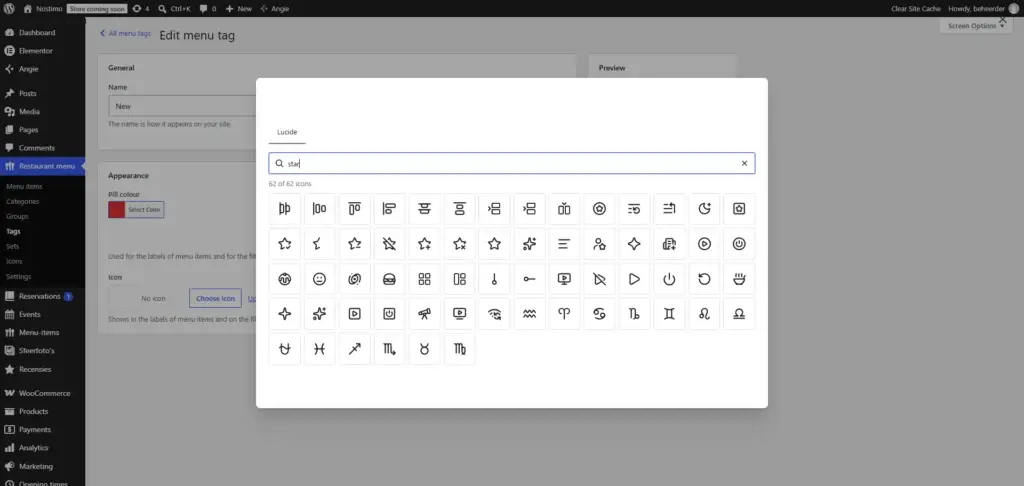
That’s only 62 icons to select from. We’ll take the five pointed star… and voila!
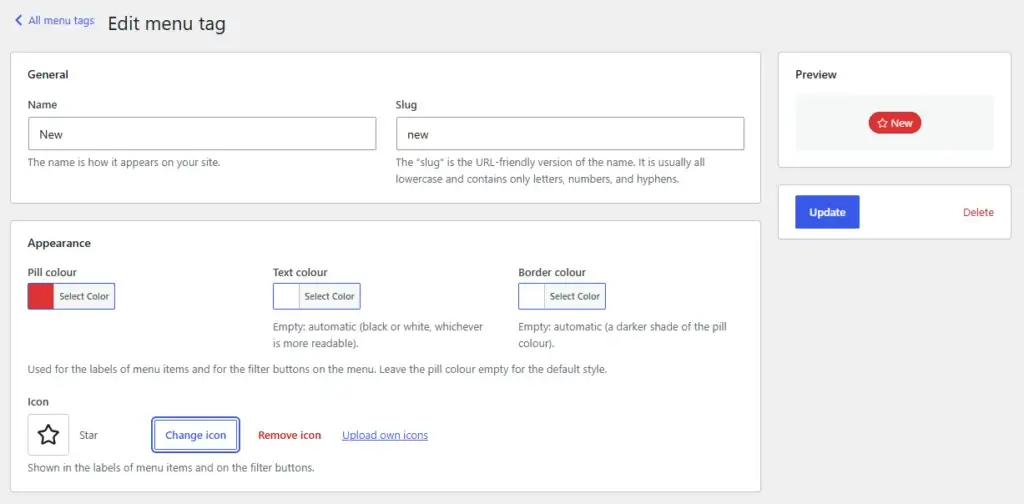
It’s really that simple to create cool tags for your menu


